How to Run a Discord Community Server That Doesn't Go Quiet
How to set up a Discord community server (what enabling Community changes), structure channels and roles, moderate with AutoMod, and keep members coming back after launch, with a 30-day plan.
A Discord community server goes quiet for the same few reasons almost every time: too many channels, no reason to come back on a set day, and new members who never get a first reply. The fix is not a bot or a bigger launch. It is a small server with a clear purpose, a weekly rhythm people can count on, and someone who answers newcomers the same day.
This guide covers how to set up a Discord community server properly (including what turning on Community actually changes), how to structure channels and roles so people know where to talk, how to keep it safe without a full-time moderator, and the routines that keep a server active after the launch buzz fades.
The short version: start with fewer channels than you think you need, give the server one weekly ritual, and treat every new member’s first message as the most important message of the day.
What is a Discord community server?
A community server is a normal Discord server with the Community setting turned on in Server Settings. It unlocks tools meant for public or growing groups rather than a handful of friends. Discord’s help centre lists these as the main ones, when we checked it in November 2026:
- Community Onboarding: new members answer a few questions and get the roles and channels that match their interests.
- Announcement channels: other servers can follow them and receive your updates.
- Server Insights: charts on growth, retention and which channels people use.
- Forum channels: organised, searchable discussion threads. Discord’s help page says forums need Community enabled.
- Server Discovery: a listing in Discord’s own directory, limited to larger, partnered and verified servers.
- Updates from Discord: a moderator-only channel where Discord posts changes that affect server admins.
If your server is for a group of more than a few dozen people, or you want strangers to be able to find and join it, turn Community on. For a private group of friends, you do not need it.
Community server vs normal server
What you get | Normal server | Community server |
|---|---|---|
Onboarding questions for new members | No | Yes |
Forum channels | No | Yes |
Announcement channels others can follow | No | Yes |
Server Insights | No | Yes, above a size limit |
Safety settings you must keep on | Your choice | Required (see below) |
How do you make your Discord server a community server?
Open your server, click the server name at the top left, choose Server Settings, then Enable Community in the left sidebar and press Get Started. Discord walks you through a short set-up and asks you to agree to its Community Server Guidelines before you finish.
During set-up Discord requires four things, according to its help page on enabling Community:
- Verification level: members need a verified email on their Discord account before they can send messages in the server. (Members you have given a role are not affected.)
- Explicit media content filter: Discord scans media from all members and removes content flagged as explicit.
- A rules or guidelines channel: a channel where your server rules are clearly posted.
- A community updates channel: a moderator-only channel where Discord sends announcements for admins.
The server also has to follow Discord’s Community Guidelines. If you change your mind, you can turn Community off again from the Overview tab under the Community heading in Server Settings.
Before you press the button, have two channels ready: #rules (readable by everyone, writable only by you) and #mod-updates (visible only to you and your moderators). Set-up takes a couple of minutes when those exist.
How should you structure channels in a community server?
Start with the smallest set of channels that covers what members actually do. Empty channels are the most common reason a new server feels dead: ten channels with one message each looks quieter than three channels with ten messages each.
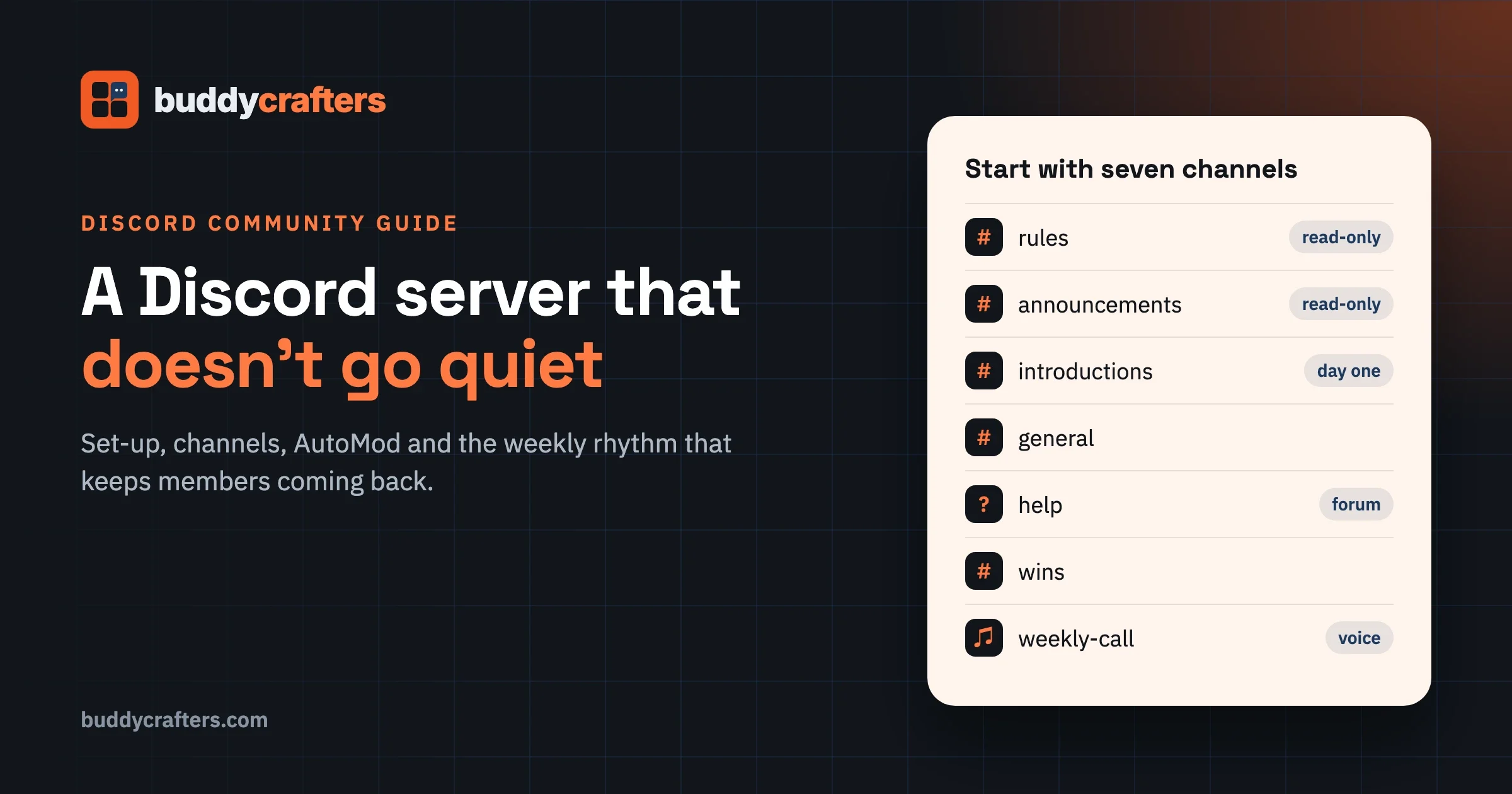
A starting layout that works for most communities:
Category | Channel | What it is for |
|---|---|---|
Start here | #rules, #announcements | Read-only. Rules, news, events |
Start here | #introductions | New members say hello |
Talk | #general | Everything that has no better home |
Talk | #help or a Q&A forum | Questions that deserve a findable answer |
Talk | #wins or #show-your-work | Members share progress |
Live | One voice or stage channel | Weekly events and calls |
Team | #mod-updates, #mod-chat | Private, for you and moderators |
Add a new channel only when the same topic keeps taking over #general for a few weeks. That way every channel you add already has people in it.
Use forum channels for questions
Chat moves fast, so good answers scroll away and the same question gets asked every week. A forum channel fixes that: each question becomes its own post with replies under it, and members can search and filter by tags. Discord’s help page describes setting post guidelines, requiring tags, and choosing when inactive posts move to “Older Posts” (from one hour to one week, three days by default).
Make your help channel a forum, add five or six tags for your main topics, and pin a post that shows what a good question looks like. Over time it turns into a library of answers new members can search before they ask.
Keep channel names plain
Clever names (“#the-lounge”, “#campfire”) make sense to you and nobody else. Use names a newcomer understands at a glance: #introductions, #help, #events. Put a one-line description in each channel’s topic saying what belongs there.
How do you set up roles and onboarding?
Roles do two jobs: they show who is who (moderators, team, longtime members), and they control who sees what. Keep both jobs simple at the start.
- Staff roles: Owner, Moderator, and perhaps Team. Give moderators only the permissions they need (managing messages, timing out members), not full admin.
- Interest roles: one per main topic or member type (for example “Beginner”, “Pro”, “Photography”, “Video”). Members pick these themselves during onboarding.
- Recognition roles: such as “Founding Member” or “Helper”, given by you to people who show up and help others.
Community Onboarding is where interest roles pay off. When someone joins, Discord shows them your questions (“What brings you here?”, “What are you working on?”) and gives them the matching roles and channels. Discord’s onboarding documentation asks for at least 7 default channels, with at least 5 that everyone can post in, and suggests keeping each question to a handful of answers. You can also add a Server Guide with a welcome message from you and 3 to 5 first tasks for new members.
Make the first task “Introduce yourself in #introductions”. It is the one action that gives you a chance to reply to them by name.
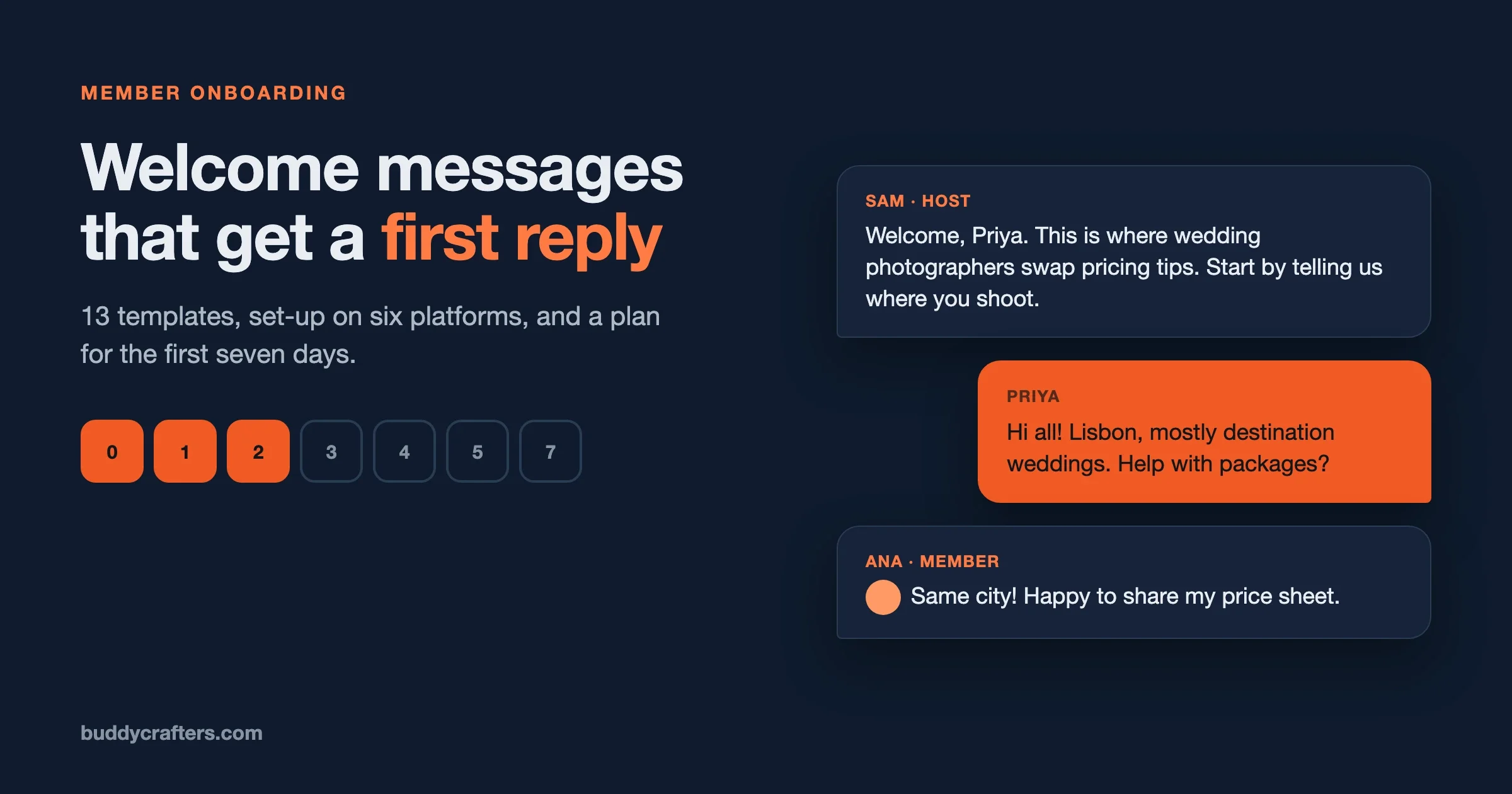
For ready-to-copy welcome messages, including Discord versions, see our guide to welcome messages for new community members.
How do you write rules for a Discord community?
Short rules get read; long ones do not. Five to seven rules covers almost every community. Each should be one line, written as what to do, with the consequence stated once at the end.
1. Be kind. Disagree with ideas, not people.
2. Stay on topic for the channel you are in.
3. No spam or self-promotion outside #share-your-work.
4. No DMs to members who have not asked for them.
5. Keep it safe for work.
6. Moderators make the final call. If something feels wrong, tell a moderator.
Breaking these rules can lead to a warning, a timeout or a ban, depending on how serious it is.
Your server rules sit on top of Discord’s own Community Guidelines, which apply to every server. You do not need to repeat those. Write the rules that are specific to your group, especially the self-promotion rule, which is the one most communities end up needing.
How do you moderate a Discord server without a full-time team?
Let Discord’s built-in tools handle the routine, and spend your own time on the judgement calls. The main tool is AutoMod, under Server Settings, AutoMod. According to Discord’s AutoMod help page it offers:
- Commonly flagged words: ready-made lists for insults and slurs, sexual content and severe profanity. You can exempt words that are fine in your community.
- Custom keywords: your own list of words and phrases to block, for example a competitor’s referral links or a scam phrase you keep seeing.
- Spam content filter: machine-learning detection of unsolicited ads and invite spam. Discord says plainly it will not catch everything.
- Mention spam limit: blocks messages that tag too many members or roles at once.
For each rule you choose what AutoMod does: block the message (with a short custom note to the sender, up to 150 characters), send an alert to a private moderator channel, or time the member out (custom keyword rules only). Turn on alerts to #mod-chat so you can see what is being caught and spot repeat offenders.
A simple moderation routine
How often | What to do |
|---|---|
Daily (5 minutes) | Read the AutoMod alerts and reply to new introductions |
Weekly | Check reported messages, add new scam phrases to AutoMod |
Monthly | Review rules, thank your moderators, invite a new helper |
When the server grows, recruit moderators from the members who already answer questions and calm arguments. Ask them; do not wait for volunteers. Two or three moderators in different time zones cover most of the day.
Spam is getting harder for every community, not just on Discord. Our guide to moderating a community at AI spam volume covers what to automate first.
Why do Discord servers go quiet?
Most servers that go quiet were never really busy. They had a launch spike, then the people who joined had no reason to come back. The usual causes:
Symptom | Likely cause | Fix |
|---|---|---|
People join, never post | No first action, no reply | Onboarding task plus a same-day reply |
Busy for a week, then silent | No reason to return | One weekly ritual on a fixed day |
Only the owner posts | Members feel like an audience | Ask questions, feature members |
Many channels, few messages | Activity spread too thin | Merge or archive empty channels |
Same questions every week | Answers scroll away | A Q&A forum channel with tags |
How do you keep a Discord community active?
Give people a reason to come back on a specific day, and make sure every post gets a reply. Those two habits matter more than any feature.
Run one weekly ritual
Pick one repeating thing and do it every week at the same time: a Monday goals thread, a Wednesday “show your work”, a Friday open call. A ritual turns “I should check the server sometime” into “it’s Wednesday, I’ll post my progress”. Start with one. Add a second only when the first runs well without you pushing it.
Use scheduled events
Discord’s Scheduled Events let you announce a session ahead of time; members can mark themselves interested and get notified when it starts. Events can run in a voice channel, a stage channel, or “somewhere else” (an external link or a physical place). Discord’s help page notes that events in voice channels are limited to 99 participants, so use a stage channel or an outside video tool for bigger sessions.
Good repeating events for most communities: a monthly Q&A with you or a guest, a weekly co-working hour, and a short new-member welcome call.
Reply to everything for the first few months
Until members start answering each other, you are the community. Reply to every introduction and every question within the day. When a member gives a good answer, thank them in public and consider giving them a Helper role. That is how members learn that answering is valued here.
Feature members, not just announcements
If #announcements is only your news, people mute it. Use it to highlight a member’s win, a great answer of the week, or a project someone shared. People come back to places where they might be mentioned.
Ask small questions
Big open questions (“What do you think about the industry?”) get silence. Small specific ones get replies: “What’s one tool you couldn’t work without?”, “Share a photo of your desk”, “What are you working on this week, in one line?” Post one every couple of days in #general. For a month of ready-made ones, get our free 30 Community Engagement Prompts, with a weekly content calendar.
How do you grow a Discord community server?
Grow it from people who already know you, then let members bring members. Paid promotion and server listing sites bring people who joined a hundred servers that week and will not stay.
- Invite founding members personally. Twenty to fifty people you message one by one will do more for a new server than a thousand strangers. Ask them to post in the first week, so the server is not empty when others arrive.
- Link the server where your audience already is: your newsletter, YouTube descriptions, course pages, website and social profiles. Use a permanent invite link and track which ones work by creating a separate invite per place.
- Make joining worth it. Say in one line what members get that they cannot get elsewhere: feedback from peers, early access, live sessions, answers from you.
- Ask members to invite one person. Once the server is active, a monthly “who should be here?” post brings better members than any ad.
- Look at Server Insights. Discord’s help page says it is available to Community servers above a size threshold (500 members, at the time of that page). It shows where new members came from, how many stayed, and which channels they used. Put your time into the channels and sources that keep people.
Server Discovery, Discord’s own directory, is limited to larger servers and partnered or verified ones, so do not plan your growth around it at the start.
How should different kinds of communities use Discord?
The same server set-up does not fit every group. What changes most is the weekly ritual and which channel carries the weight.
Community | Main channel | Weekly ritual |
|---|---|---|
Course or cohort | Q&A forum, one post per lesson | Live office hours |
Creator and fans | #general plus #fan-art or #clips | A stream or watch party |
Customer or product | Help forum with tags per feature | Changelog post and feedback thread |
Professional network | #introductions and #jobs | A themed discussion or guest AMA |
Hobby or local group | #show-your-work | A challenge or meetup plan |
For a course, keep each lesson’s questions in its own forum post so later students find the answers. For a customer community, tag help posts by feature, and link solved posts from your help docs so the same question is not asked twice. For a creator, the stream or watch party is the reason to show up; post the time a few days ahead as a scheduled event.
Whatever the type, the rule is the same: one clear place for the main activity, one repeating reason to come back, and a person who replies.
When is Discord the wrong home for a community?
Discord is very good at real-time chat, voice and events, and it is free. It is weaker in a few places that start to matter as a community becomes a business:
- You do not get your members’ email addresses. If the server is removed or the platform changes its rules, you cannot contact the people in it. Start collecting emails (with consent) from day one, for example with a sign-up link in #announcements.
- Content is hard to find from outside. Your best answers do not show up in Google, so the community does not grow from search.
- Paid tiers and courses live elsewhere. You can sell access through other tools, but the community, the payments and the course are spread over several services.
Many communities end up using Discord for live chat and a site or platform they own for the searchable, paid or long-term parts. Our comparison of Discord alternatives for running a community covers when that split makes sense and what to use for each part. If you decide to move, the Community Migration Checklist has notes for leaving Discord without losing members.
A 30-day plan for a new Discord community server
When | What to do |
|---|---|
Days 1 to 3 | Create channels and roles, enable Community, turn on AutoMod, write rules |
Days 4 to 7 | Set up onboarding and the Server Guide, invite 20 to 50 founding members |
Week 2 | Start the weekly ritual, reply to every post, run a first live event |
Week 3 | Fix what confused people, merge empty channels, pick a first helper |
Week 4 | Link the server everywhere your audience is, ask founding members to invite one person |
The free Community Launch Checklist covers the full 90 days on any platform, Discord included.
Where our tools fit
BuddyCrafters is part of Wbcom Designs, which makes community software, so here is where it comes in. Nothing in this guide needs anything from us; it all works on Discord’s free plan.
If you want a searchable, members-only space on your own domain alongside your Discord server, our BuddyNext is a self-hosted community engine for WordPress, and Jetonomy adds forums and Q&A. Many owners keep Discord for chat and use their own site for the answers, courses and member list they want to own.
Frequently asked questions
Is a Discord community server free?
Yes. Enabling Community does not cost anything. Server Boosts and Nitro are optional paid extras for things like more emoji slots and higher audio quality; you do not need them to run a community.
How many channels should a new server have?
Fewer than you think: around six to eight, including read-only #rules and #announcements and a private moderator channel. Add channels when a topic keeps taking over #general.
Do I need bots?
Not at the start. Onboarding, AutoMod, forum channels and scheduled events cover what most bots used to do. Add a bot later for a specific job you cannot do without it, and give it only the permissions that job needs.
How do I find moderators?
Watch for members who already answer questions and keep conversations friendly, then ask them directly. Give them a clear, short list of what they can do, a private channel, and public thanks.
Can I export my Discord members?
Not their email addresses. Discord does not share members’ emails with server owners. If you want to be able to reach members off Discord, ask them to join your email list, with their consent, from the start.
Get the launch checklist
Setting up the server is the first week. Our free Community Launch Checklist covers all 38 steps of the first 90 days, from founding members to the numbers worth watching. For the first emails a new member gets, use the free Member Onboarding Email Sequence.
Plugins we build and run
We maintain these ourselves, which is why we can support them on your site.
- BuddyNextThe self-hosted community engine for WordPress
- BuddyXFree community theme, Pro when you outgrow it
- ReignPremium community theme. Add pieces, build anything
- JetonomyCommunity forum and Q&A for WordPress
- EventonomyEvents and RSVPs for WordPress communities
- LearnomyCourses and learning communities on WordPress
- ListoraDirectories and listings your members can browse
- SnipShareCode sharing built for developer communities
- WB Ad ManagerAd placements that turn traffic into revenue
- WP Career BoardA job board your community actually uses
- WP Sell ServicesSell services with offers, orders, and payouts
- MediaVersePhotos, video, and media albums for members
- WB GamificationPoints, badges, and rewards that keep members active
- Product RoadmapPublic roadmaps with voting your users trust